


 335
335
REMOTE ACCESS
1) Ask the help desk to enable your remote access
2) Ask the help desk send you the latest (02/10/2022) Remote Access file via email (the .RDP file). Please specify if you want your remote connection to display on one screen or on dual screens. This will determine which file we send you to connect.
3) So that you don't have to enter WLSSTAMPING\ in front of your username every single time
- Save this registry file to your home computer
- Double-click the file to open it, then double-click on the WLS_RDP_FIX.REG file
When working remote, sign on using using that RDP file with the following:
user: username-xxxxxx
(where xxxxxx is your one-time app code)
pass: (same windows password)
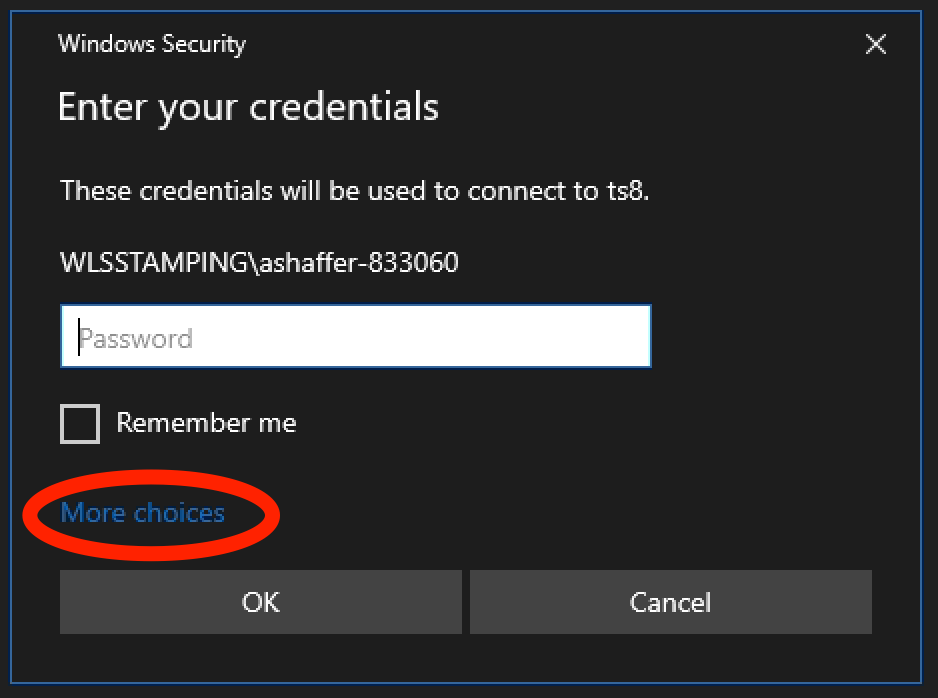
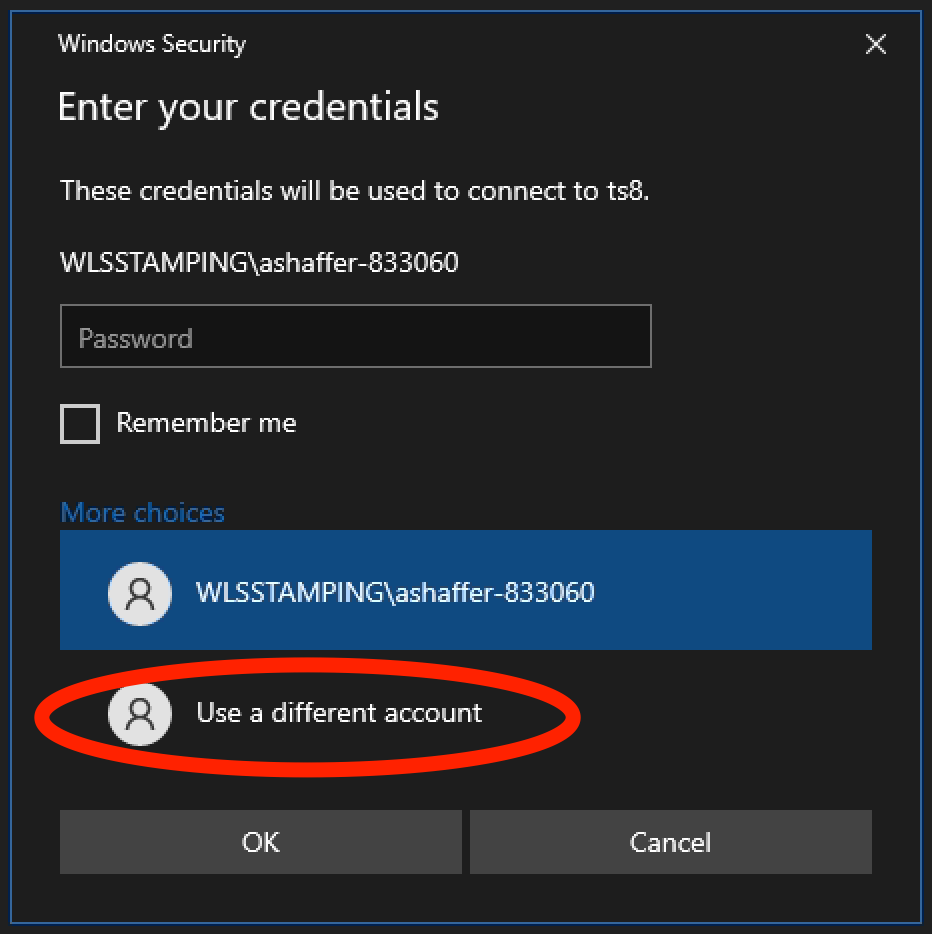
TIP: If you are NOT being prompted to enter your username you can follow the steps below OR you can submit a ticket to the help desk and we can make it so that you don't have to do these two extra steps ever again:
1) Click More choices
2) Click Use a different account
LOCAL ACCESS (while on-site at the plant)
When at WLS, sign on using:
user: username-xxxxxx
(where xxxxxx is your one-time app code)
pass: (same windows password)
keywords: logon, logging on, signon, sign on, signing on, remote access

